By clicking “Accept All Cookies”, you agree to the storing of cookies on your device to enhance site navigation, analyze site usage, and assist in our marketing efforts. View our Privacy Policy for more information.
New Gym Management Software and Member App
Beginning April 1st, you’ll have the chance to download our new member app! It is FUELhouse branded (powered by PushPress) and I’m so excited for you to see it in action! With all of that, I...
By
April 2, 2026
.webp)
Related

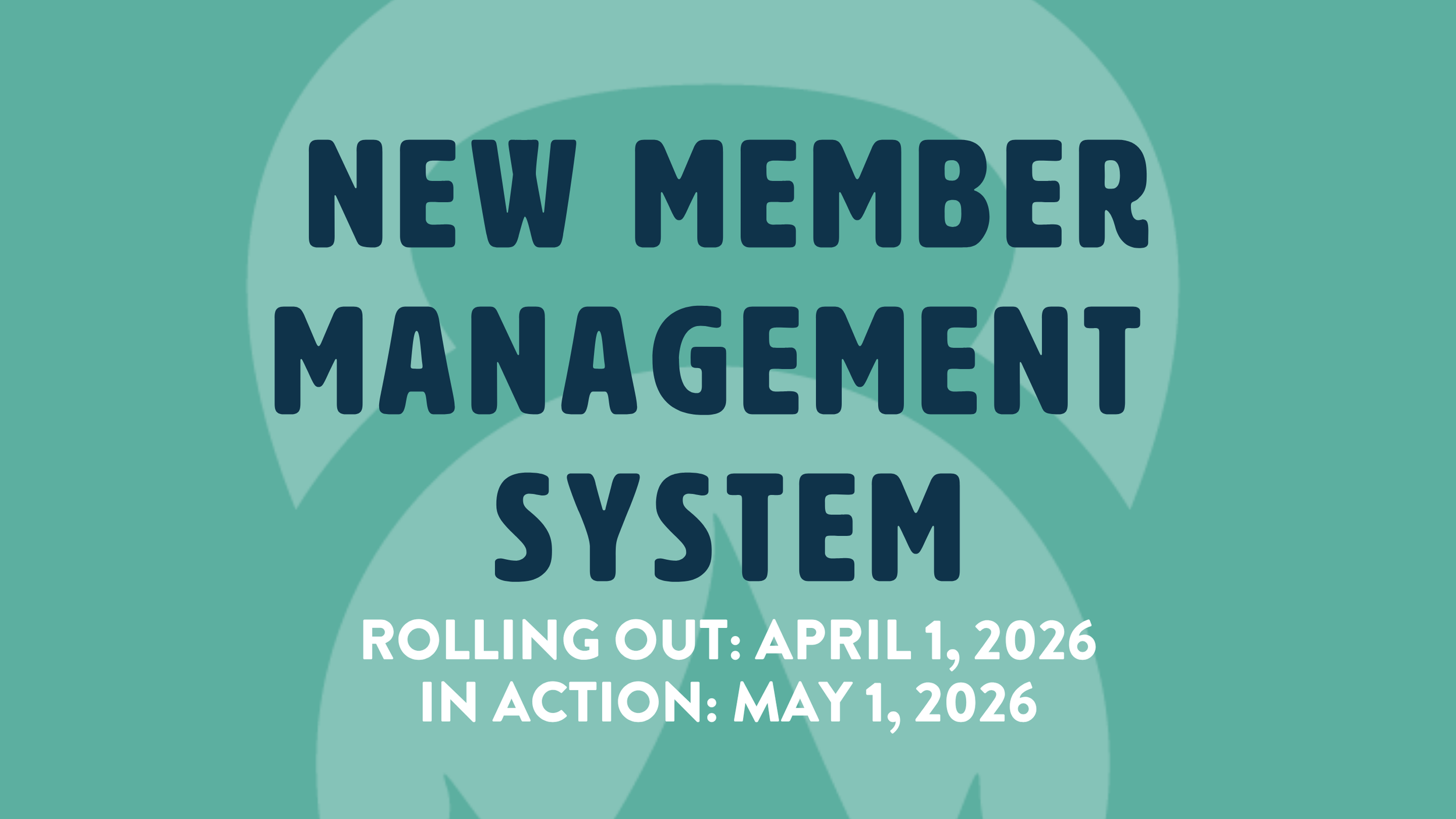
Beginning April 1st, you’ll have the chance to download our new member app! It is FUELhouse branded (powered by PushPress) and I’m so excited for you to see it in action! With all of that, I also ask for your patience as we take the month of April to work through all the kinks and get all of the amazing features and accounts set up for your use beginning May 1st. We rolled out the app on April 1st so you all could have this month to enter your info and be all ready to go (like the good students you are) on May 1st!
Anyone can download the app (links below), but you’ll need an account with PushPress in order to login. I am in the midst of adding you all to this new system and it will take time. If you don’t receive an email from PushPress inviting you to download the app and login to your account by Friday April 10th, please email me and I’ll get you squared away!
What you need to know for now:
- You will continue to use ZenPlanner (ZP) through April 30th - this includes class/session reservations and payments
- You will continue to submit your membership requests with our forms on our member hub just like normal.
- If you have any payments/bills due on or before April 30th, they will process in ZenPlanner
- This means if you have a bill due in April and need to update your payment information, you will do so in ZenPlanner. This can be done from the member app or from their desktop view.
- If you don’t have any bills due in April and have new payment information, don’t bother updating in ZP — just simply make the change in our new app when you’re ready to enter your info!
- Any payments/bills due on or after May 1st will process in PushPress (they use the Stripe payment platform)
- If you have an active membership with us as of April 1st, those accounts are gradually being added to the system. If you joined us after April 1st, you will be in a later round of being added to the new system, so thank you for your patience :)
- Not everyone that is an active member with us right now has a PushPress account created which means you haven’t received an invite yet. If you don’t receive an invite by April 10th, please email me!
- If we had the following information in ZP, it was added to our new member app: Name, Email, Phone, Address, gender, DOB, total # of check-ins (sessions & classes) and original sign up date.
What is missing and what is pertinent for you to add to our member app on or before April 30th:
- Your preferred payment method (we could not transfer this information over)
- NOTE: THERE WILL NOT BE AN ACH/BANK FEE ANYMORE! WAHOO!
- There is still a 3% fee for Credit Card payments
- If you share an account with someone, please just one of you enter the info and I’ll join your accounts later.
- Your photo! Sorry couldn’t transfer this over!
- Any missing information you find pertinent. Birthdate, address, etc.
I will host a coffee talk on Tuesday April 28th from 8am-8:30am for those that can attend - it will be recorded for those that can’t. Zoom Details below and register on ZenPlanner if you can make it!
Meeting ID: 239 510 0841
Passcode: fuelhouse
Thanks for your support with this transition!
-Coach Hay
PS peak below to review the FAQ’s about the members app - you might find the answer you’re looking for. If not, please email Hayley!
Download from the Apple Store | Download from the Google Store
PushPress Members App FAQ
with notes from Hayley :)
What does the Members App do?
Our Members App allows members to access your gym's system. They will be able to manage certain aspects of their account at your gym such as:
- Register for Classes & Events.
- Purchase Plans & Appointment Credits (if enabled by business).
- Schedule Appointment Credits (if enabled by business).
- Member Contact information.
- Billing information.
- Access to any signed documents, waivers or agreements.
- Attendance history.
- Download Invoices
Can a person create an account in the app?
No. A person can only access the Members App if they already have a profile in your system. They will not be able to create a profile in-app. Once a member has a plan added, they will have access to the app.
Can members cancel their plan in the app?
Account and membership cancellations must be processed by the business' staff and cannot be completed by members through the members app. If you are wishing to cancel your membership please contact the administrator of the gym, studio or business that you are attending.
How do I change a member's username or password?
Members have the ability to change their username and password within the app.
What if a member forgets their password?
If a member forgets their password in PushPress gym software, they can easily reset it by clicking the "Forgot Password" link on the login page. This will prompt them to enter their email address, and a password reset link will be sent to their inbox. By following the link, they can create a new password and regain access to their account.
If Forgot password does not work, request that your gym admin send you the "Profile Set Up" email.
How can members update their billing or personal information?
For members to update their billing and personal information follow these simple steps:
Note: Ensure that the app is updated to the latest version to avoid potential issues while updating payment information.
- Login to the Members App.
- Click on the "Gear" icon.
- Personal details can be updated in the "Profile" section.
- Payment information can be updated by selecting "Payments" and then choosing Pencil icon.
- Payment information can be added by selecting the "Add" button.
Can members delete their credit card on file?
Members are not able to delete their billing information on their own. This action can only be performed by the business staff. If a member wishes to remove their billing details, they will need to contact the staff directly. The staff can then securely delete or update the billing information in the system. This policy ensures that all financial data is handled with the necessary oversight and security, protecting both the business and its members. If members experience persistent charges after completing a cancellation or contract period, they should:
- First contact the gym administrator to investigate and resolve the issue.
- If the issue remains unresolved after contacting the gym, they may consider filing a dispute through their credit card company as a last resort.
I belong to multiple gyms, but can't access my gym. How do I fix this?
First, ensure the member is using the same email address across all gyms or studios in which they belong. If you have confirmed that is correct, here's step by step how to toggle between gyms. *Note that the gym choice option is only available within the Members App and not in the Branded App.
- Log into the Members App
- The potential options will appear at the bottom of your screen to select.
- Once logged in members can click on the logo of the business to move between gyms.
How do members manage family members on their account?
All family members with linked profiles at the same gym will be able to access each other’s accounts in the Members App. Once logged into the app, they will be able to see all linked accounts. They can click on the account they want to manage. If they do not see a family member’s profile listed, ensure that each family member is listed as a sub-account under a main parent account.
Note from Hayley: Any active account that was linked in ZenPlanner is now linked in PushPress (as of 4/29/26)
Can members pay their invoices using the members app?
Members cannot directly pay invoices through the PushPress Members app. In the PushPress gym software system, invoices are typically paid through the member's stored payment method, such as a credit card or bank account. Here's how the process works:
- Automatic Billing: When an invoice is generated, the system automatically charges the member's saved payment method on the due date. This is the most common way invoices are paid, ensuring timely payments without requiring manual action from the member.
- Staff-Initiated Payments: Gym staff also have the ability to process payments on behalf of members. This can be useful in situations where a member prefers to pay in person or over the phone.
- Payment Methods: Members can pay invoices using credit/debit cards or bank account transfers provided the payment method is enabled in the PushPress system.
- Hayley note: CC payments (think any card with an expiration date) will have a 3% fee whereas bank or ACH information will not incur a fee.
Can members delete their profile and personal data?
No, members cannot delete their own profiles directly in the PushPress system. Profile and data deletion requests must be handled through specific processes depending on the situation:
Steps for members to request data deletion
- Contact Your Gym Admin Team:
- Contact your gym directly as the first step. The gym's admin team has the ability to manage account deletion requests.
- For Past Gym Members:
- For members no longer associated with a gym, contact the last gym you were linked with, as they typically handle account deletion requests.
- Direct Requests to PushPress:
- PushPress can only remove payment information as long as there is not an active plan and/or outstanding payment due. Please reach out to your gym admin to be up to date and/or delete your account.
- Expedite Processing:
- Provide your associated email address and gym details to expedite the review process.
How can members access their attendance history?
From the home page, attendance is shown at the bottom. By selecting "View all", a month-by-month list (in chronological order) is available. An attendance report can be sent by selecting the "Arrow" from the upper right corner, members will be able to set the date range, as well as specify what email address the attendance history should be sent to.
How does waitlist work?
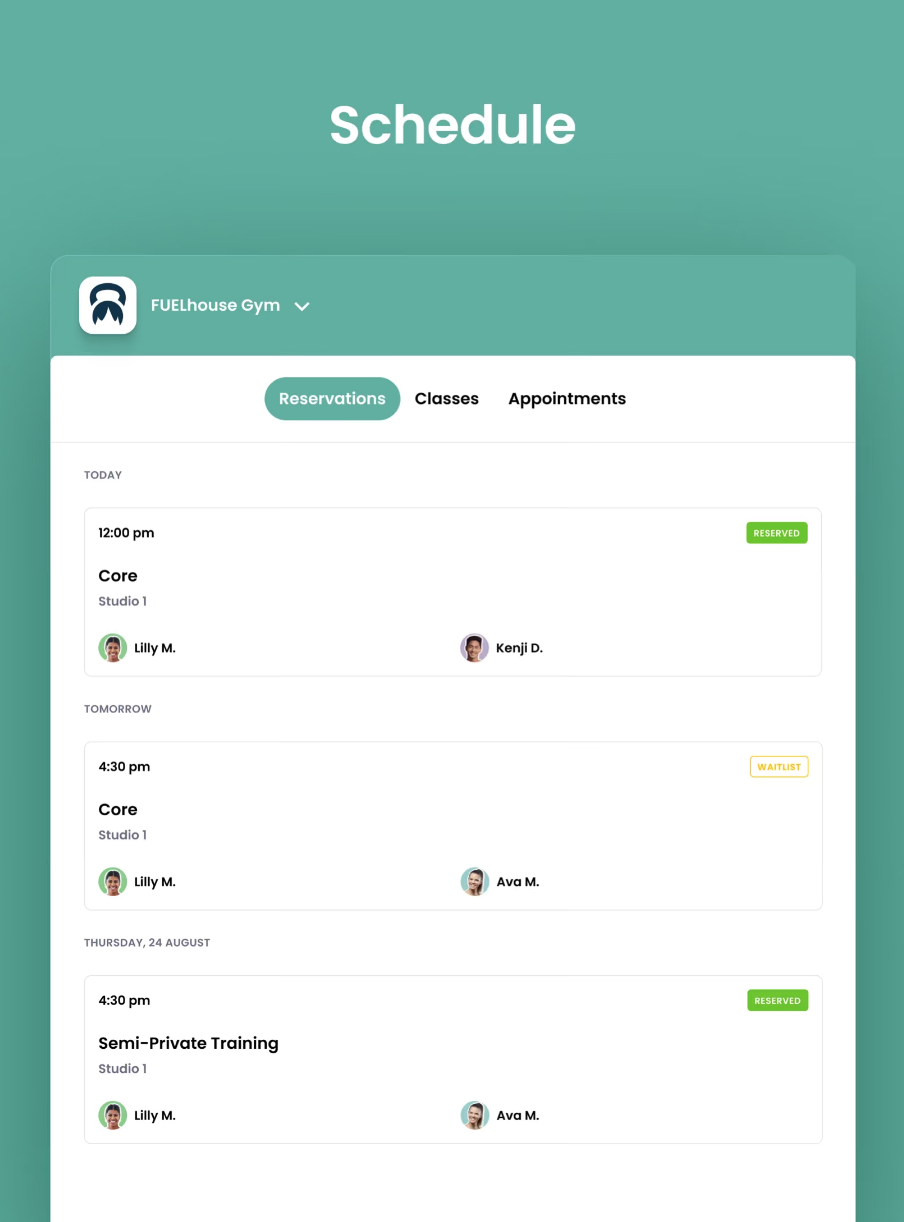
If a class is full, a member can put their name on the waitlist. They will be asked to set their notification preferences. If a spot opens up according to their notification preference, they will be sent a notification via text or email, that they have been given the spot. They will be automatically registered for the class.
Can members see who else is reserved for a class?
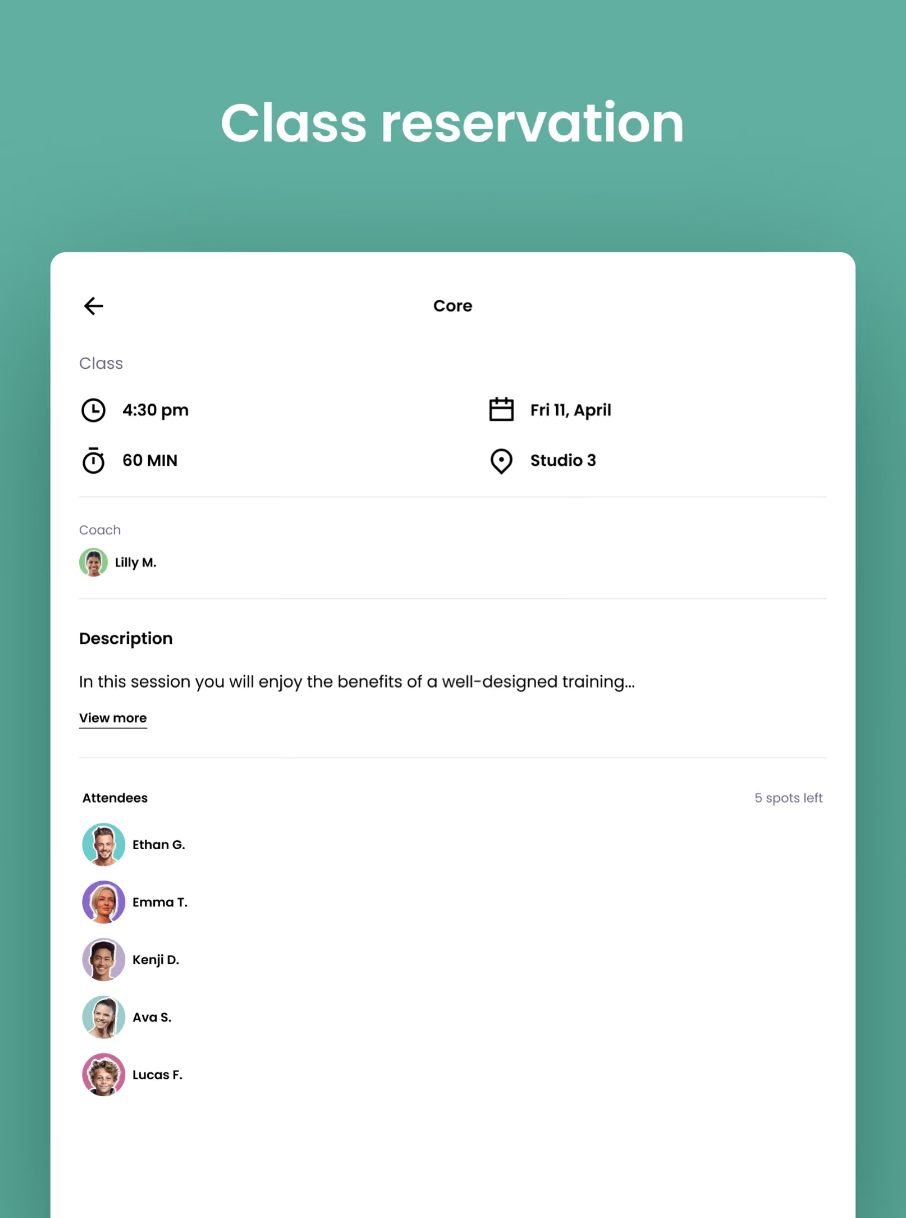
This is a setting that is dictated by the business admins. If enabled, members will be able to see who is reserved for class by simply select any class from the schedule button and swipe up on your screen. This will display additional class details, including the staff assigned to the class and a list of participants who have registered.
Hayley Note: this is enabled for FH :)
What types of notifications does the Members App send to members?
- New social posts from staff members only
- Mentions in posts or comments
- Comments or reactions on your post/comment
- New workout published
- Likes or comments on your workout score
- Reservation updates (e.g. off waitlist)
*Members can manage their notification preferences by clicking the gear icon on the home screen then selecting notifications.
Some of the push notifications are exclusive to business that use the Train workout tracking software. Below is a list of these notifications:
- A new workout is published.
- Someone comments on your score.
- Someone likes your score.
What if a member belongs to multiple gyms; how do notifications work?
If a notification is for a different gym than the one currently selected, the app will automatically switch to the correct gym (if the user has access) and route them to the right screen.
A member can't register for a class. Help!
A member might not be able to register for classes for any of the following reasons.
- They have exceeded the number of classes their plan can register/check-in to.
- They membership plan is overdue.
- The plan does not allow for check-ins to this specific class.
- The class is full. In these cases, members can join the the waitlist.
- They're trying to register outside of the class's registration window.
What workouts show on the app and what can members do with them?
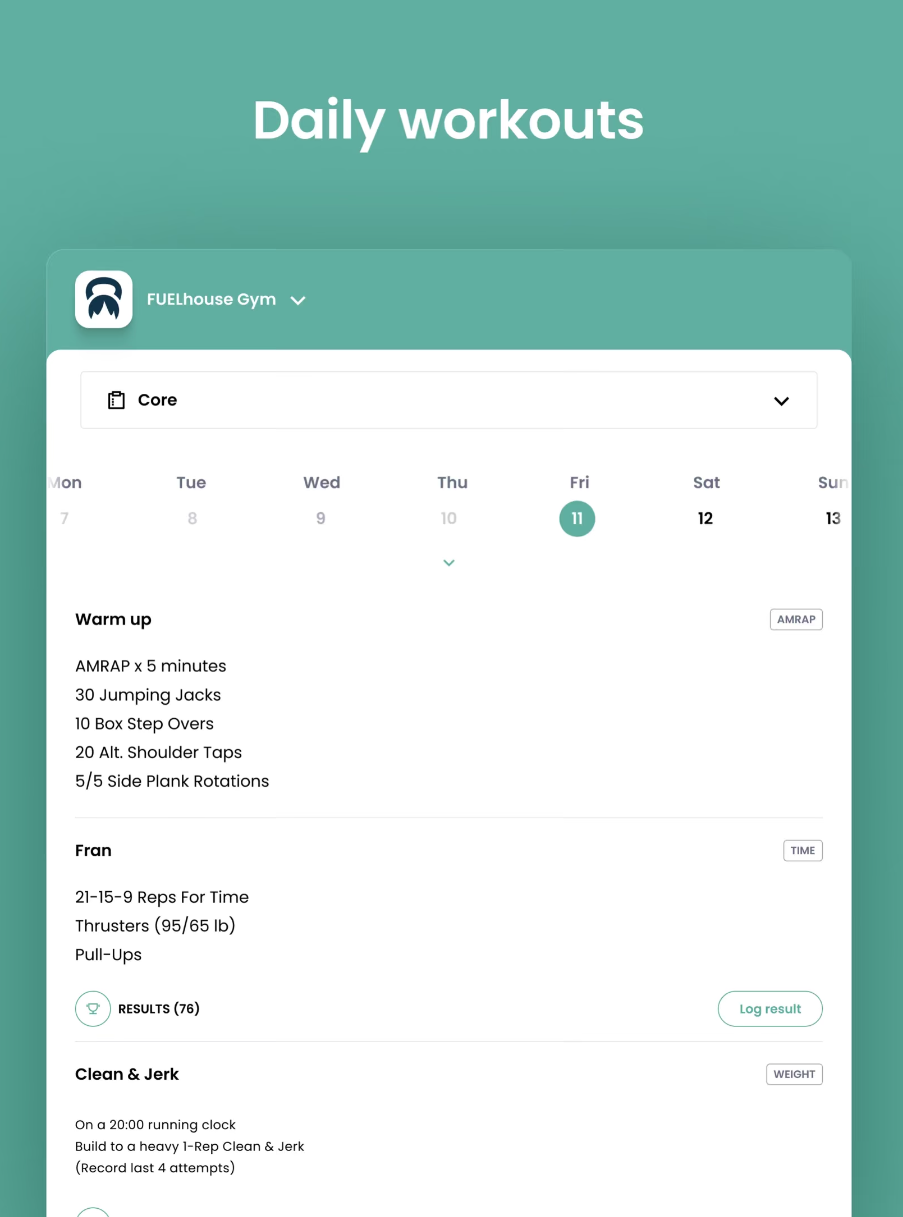
- Train workouts show the workout details, notes, videos, and a calculator if it is a “for weight” workout. There is a trophy icon that goes to the leaderboard and a “Log Result” button for people to track workouts within the app. If a score has already been logged, it will show the result logged with a ☑️.
When do pre-orders show on the homepage?
Any pre-order that is active and available for ordering shows on the homepage. If there are multiple active pre-orders, the widget will be a carousel that users can scroll through to see the card for each pre-order.
Need More Help?
For further assistance:
- Check out other Help Articles.
- Use the PushPress Messenger (blue box in your CORE account).
- Email us at support@pushpress.com.
About PushPress
PushPress is a gym management software that can help you a lot in managing your gym. We've helped thousands of local gyms streamline and professionalize their businesses with our intuitive, powerful solution for managing fitness facilities - all from the palm of their hands!